WiFi Mesh Backhaul with 802.11s
This guide explains how to create a WiFi backhaul between two OpenWRT routers using the 802.11s (mesh point) protocol.
Objective
Create a mesh WiFi link between two OpenWRT routers to extend the network without an Ethernet cable. The second router will be configured as a "Dumb AP" and will communicate with the main router via a secure mesh backhaul.
Prerequisites
- Two routers with OpenWRT installed
- SSH or LuCI web interface access on both routers
- A configured main router (with active DHCP and firewall)
Step 1: Configuring the Second Router as a Dumb AP
The second router must be transformed into a "Dumb AP" (basic Access Point without network services). There is an automatic script for this configuration, but we will detail the manual method via the LuCI interface.
Automatic Script (Optional)
For automatic configuration, you can use OneMarcFifty's script available on GitHub - onemarcfifty/openwrt-mesh.
Manual Configuration via LuCI
You need to disable the following services on the second router:
- Firewall: System → Startup → Disable
firewall - DNS: Network → DHCP and DNS → Uncheck "DNS server"
- DHCP Server: Network → Interfaces → LAN → DHCP Server → Check "Ignore interface"
These services are not necessary because the main router handles security, DNS, and IP address distribution.
LAN Interface Configuration
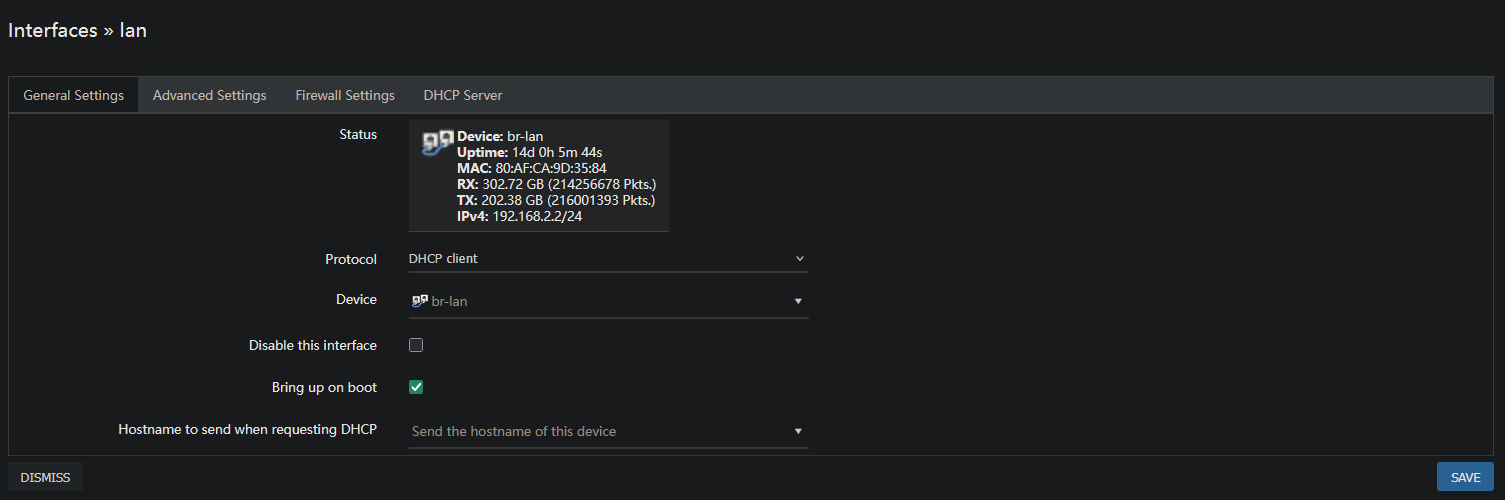
Configure the second router's LAN interface to be on the same subnet as the main router:
- Go to Network → Interfaces → LAN
- Configure the following parameters:
- Protocol: DHCP client (recommended) or Static address
- If Static: IPv4 address:
.2on the subnet (example: if the main router is at192.168.1.1, set192.168.1.2)
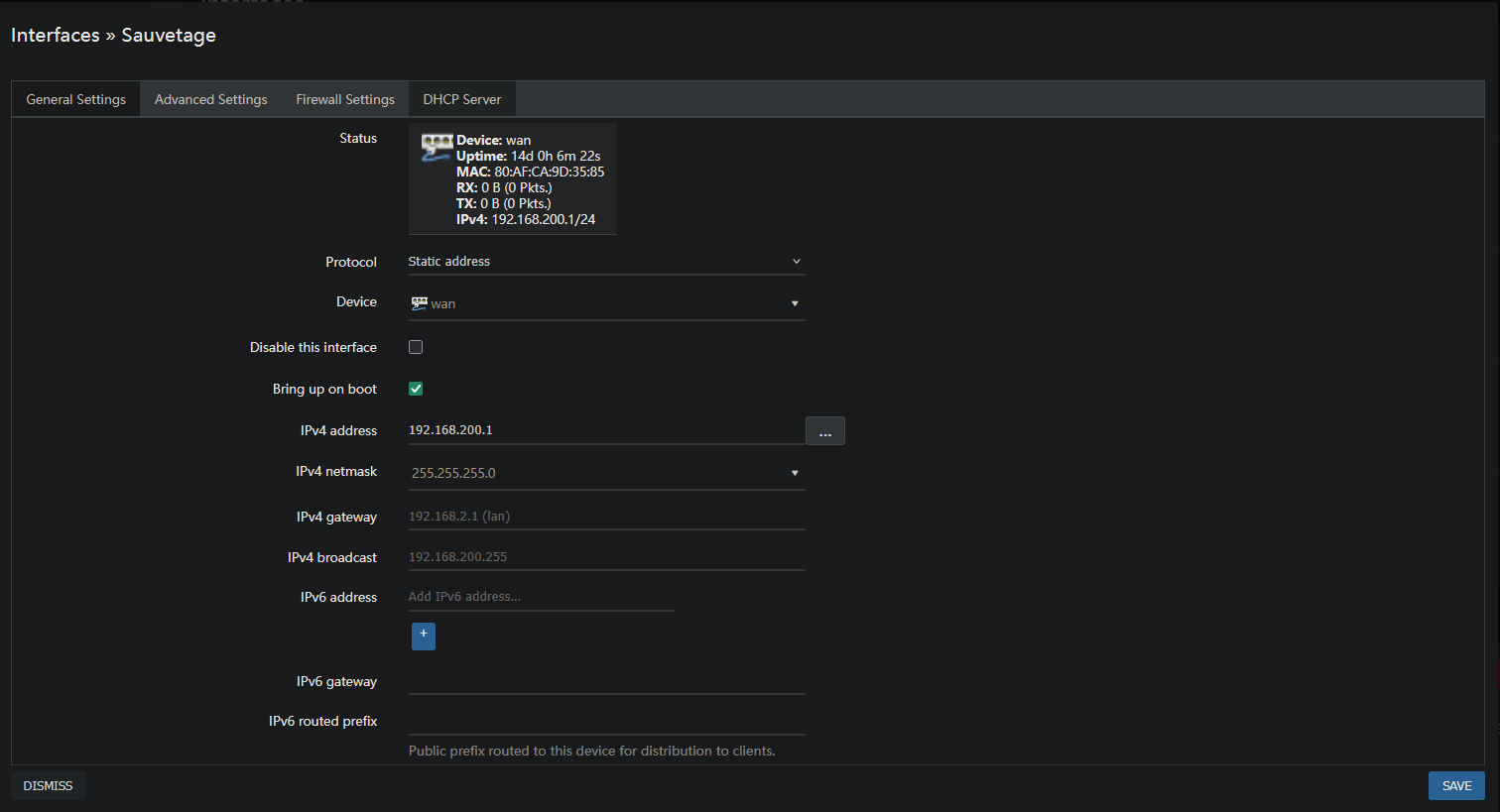
Before modifying the LAN interface, note the current IP or configure a backup interface to be able to access the router in case of problems.
Step 2: Configuring the 802.11s Mesh Network
The 802.11s protocol allows creating a native WiFi mesh network. Both routers will use this protocol to establish the backhaul.
Mesh Parameters
Both routers must have exactly the same following parameters:
- WiFi Mode: Mesh Point
- Mesh ID: unique identifier for your mesh (same value on both routers)
- Network Interface: create a dedicated interface for the mesh (example:
mesh0) - Security: WPA3-SAE (Personal) recommended
- Password: strong and random password
Generating a Secure Password
Use this command to generate a strong random password:
openssl rand -base64 32
Or from OpenWRT:
dd if=/dev/urandom bs=1 count=32 2>/dev/null | base64
Configuration via LuCI
- Go to Network → Wireless
- Select the WiFi interface to use for the mesh (usually radio0 or radio1)
- Configure the following parameters:
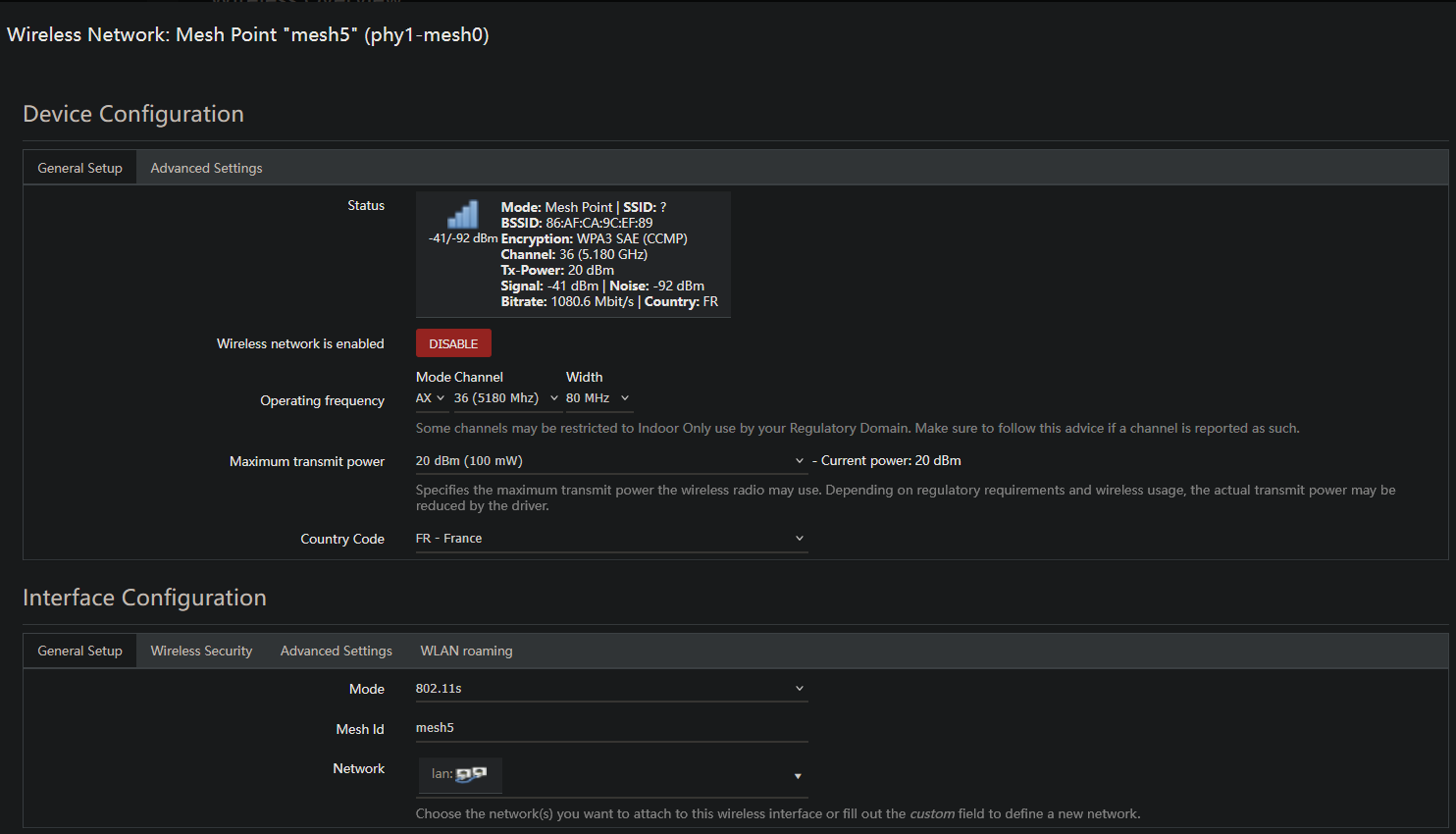
Essential Parameters:
- Mode: Mesh Point (802.11s)
- Mesh ID: your mesh identifier (identical on both routers)
- Network: create or select a dedicated network interface for the mesh
- Encryption: WPA3-SAE
- Key: the previously generated password
Both routers must have exactly the same Mesh ID and the same password, otherwise they will not be able to establish the mesh connection.
Network Interface for the Mesh
Create a dedicated network interface for the mesh:
- Network → Interfaces → Add new interface
- Name:
mesh0(or any other descriptive name) - Protocol: Static address or DHCP client
- Device: select the created mesh device (usually
mesh0)
This interface will serve as the basis for the GREtap tunnel in the next section.
Verification
After configuration, verify that:
- The second router obtains an IP on the same subnet as the main router
- Both routers can ping each other
- The mesh interface is active and connected (verifiable in Network → Wireless)
- The mesh backhaul is established and stable
Next Step
Once the mesh backhaul is configured, you can proceed to GREtap configuration to extend VLANs through this mesh link.